Dieses technische Dokument ist auf Englisch verfügbar. Die Oberfläche folgt Ihrer ausgewählten Sprache.
Use .motion in Codex
This guide covers local Codex with file and command tools. In ChatGPT desktop, prefer a local work mode connected to the production directory and check actual capabilities. Cloud tasks do not automatically inherit computer-local paths or tools. For a usage question, read public instructions and explain the steps first; installation and rendering are not prerequisites for an explanation. Use the current conversation’s actual tools and permissions.
1. Create a working directory
Download a template, keep the original and start in a new directory. Open that directory as a local Codex project and give the exact package path. Personal copies may include a Key; keep them out of public repositories.
For chat attachments, wait for upload completion and ask the assistant to actually confirm the filename, size and outer entries. If loading stalls, retry or use the website’s ZIP compatibility download (identical contents, still including your Key). Do not wrap .motion in another ZIP. If reading still fails, use a local work environment with access to the project folder. Full handoff guide
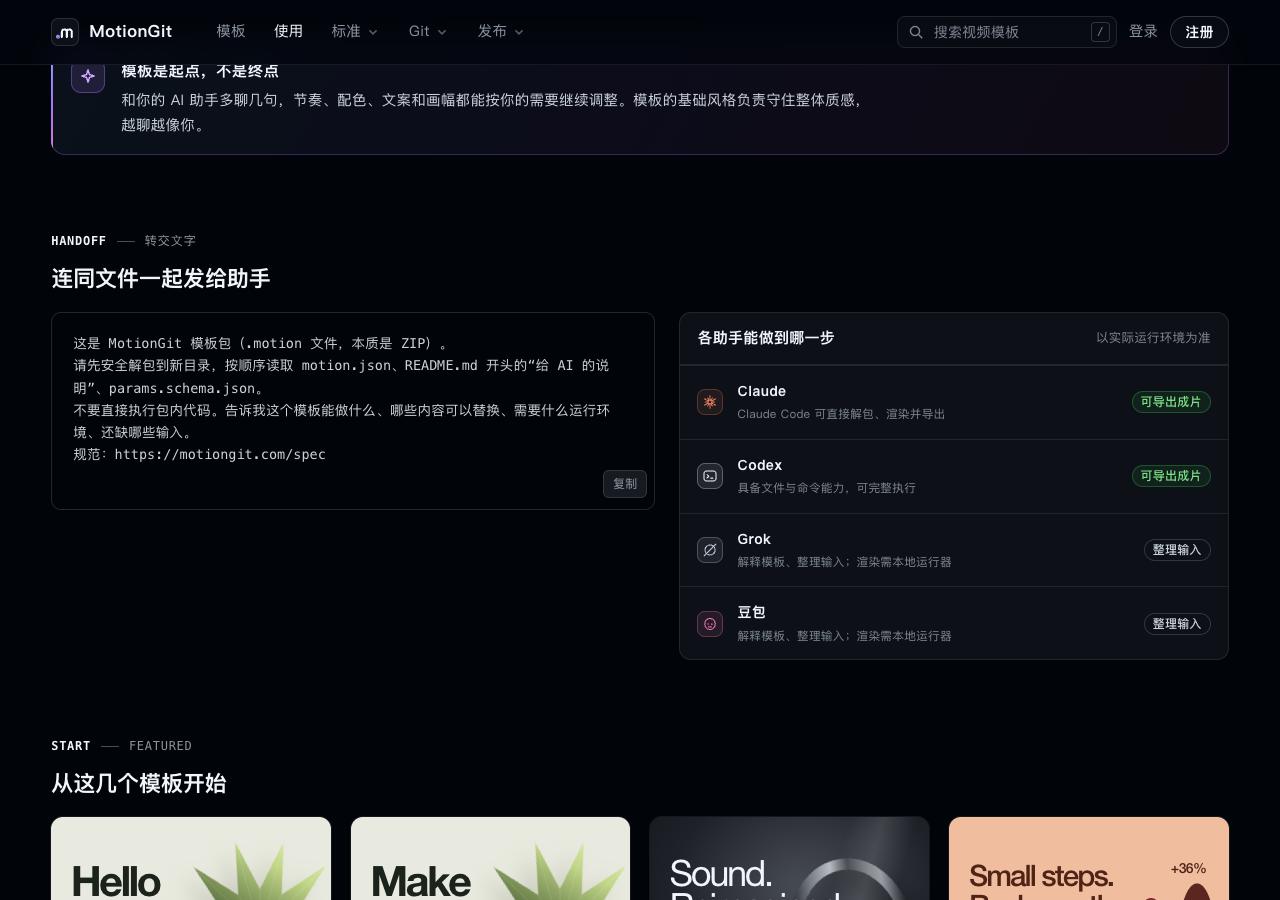
Figure 1: Site guidance on capabilities. Confirm file and command tools are available; an assistant’s name alone does not guarantee export capability.
2. Read the bundled entry and instructions first
Current personal downloads include an entry. No separate Skill/host or copied identifier is needed. List outer ZIP entries read-only; when 00-START-HERE.md and assistant/guide.json exist, read them first and keep the original. Do not unpack personal identity or protected content. Without that entry, identify the actual author-project structure.
Keep my .motion original. List outer entries read-only and read 00-START-HERE.md and assistant/guide.json. Explain purpose, required assets and runtime first. Report actual file/approval failures promptly and stop reusing inactive requests. When production is requested, verify the bundled entry and identity and read actual contracts; do not fetch another Skill/host or copy an identifier. Plan in a new directory, show an actual preview, then export after approval and keep the project.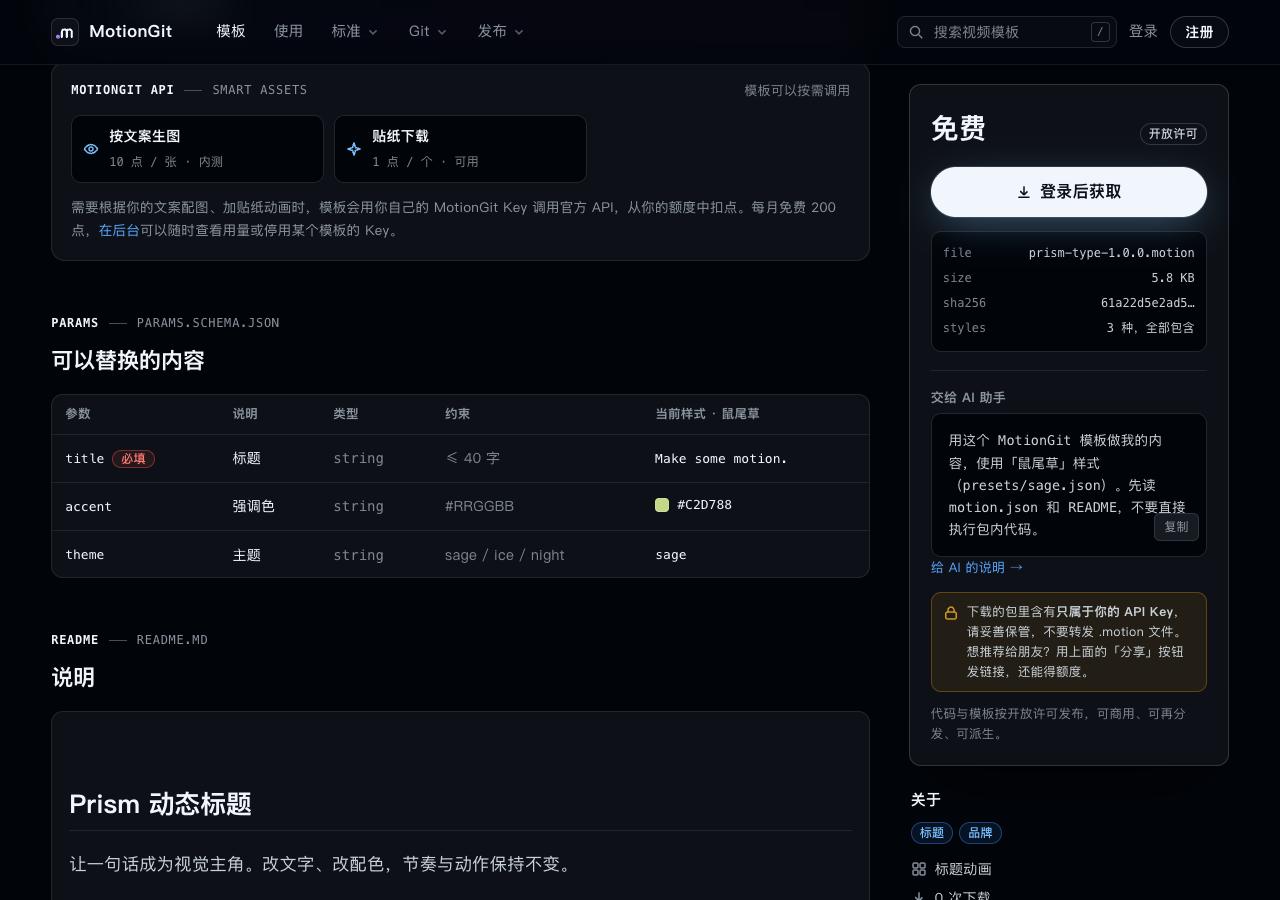
Figure 2: The template page shows editable inputs. Use the actual readable package contract.
3. Check production capabilities when production is requested
Confirm access to the original and Node.js 22+. Verify the bundled entry against the fixed official metadata in the first-read file, then use its start operation and verified contracts. The tool handles identity and protected content; retain the original and respect existing stage authorization.
An inactive approval cannot authorize the original operation. Explain the block promptly; any fresh request concerns the current operation. Do not disable approvals/sandboxing or retry indefinitely. With chat-only tools, deliver content planning and an explicit handoff.
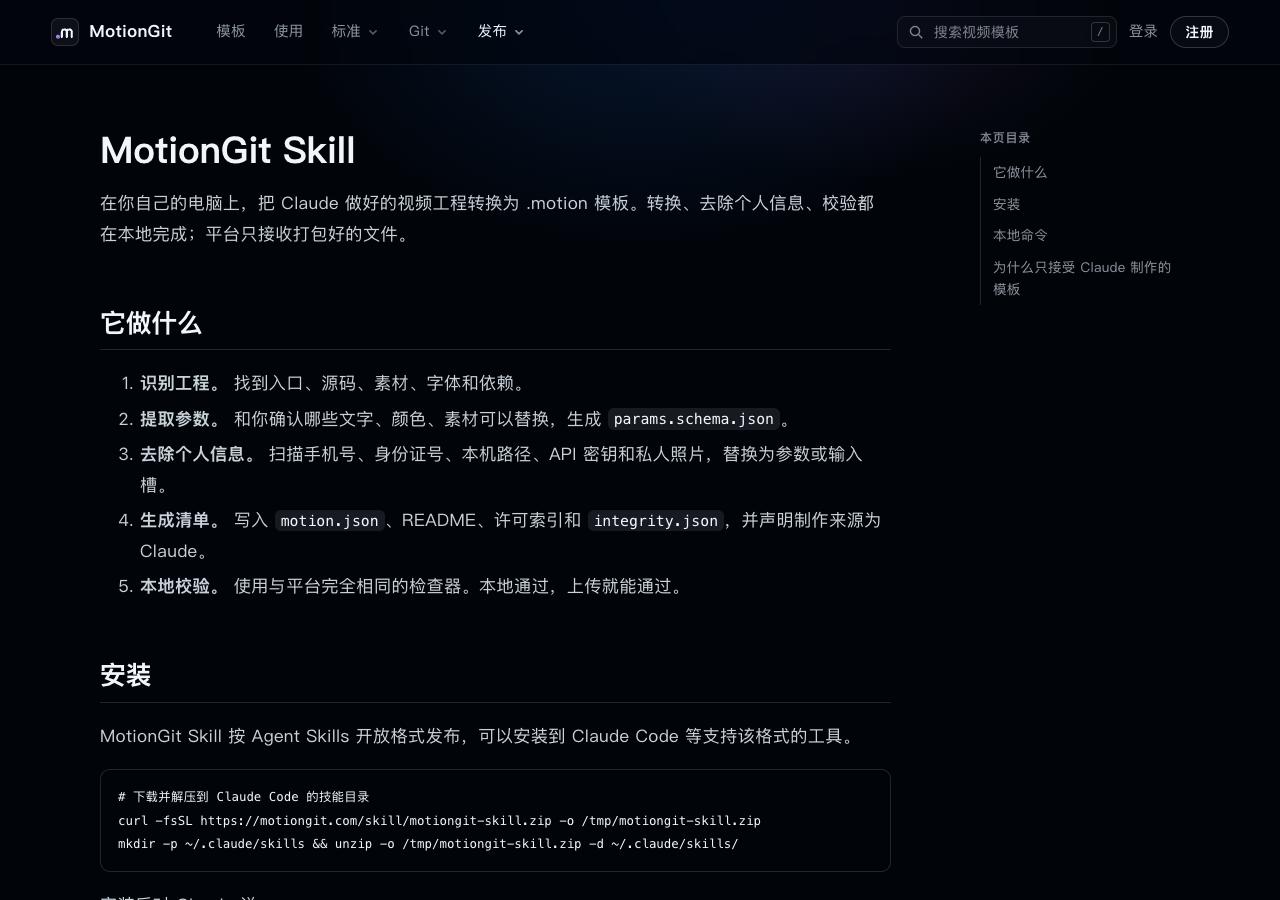
Figure 3: Skill inspect/scan/pack are author tools, not an additional startup requirement for current personal downloads.
4. Review the preview and changes
Check presets, text overflow, asset replacements, timing and credits. Give specific feedback, such as “Bring in the second line half a second earlier; keep the other motion.” After approval, export and request the output path, changed files and test results. Keep the package, instance and output separately. Remove personal Keys and inspect before republishing.
See the official OpenAI app guide and skills guide. Sources were checked on 2026-10-05. Images come from a local example site; they do not depict a Codex conversation.